
3 Best Ways to Download Music from Apple Music Easily

You’re here because you want to save your favorite songs from Apple Music and listen to them offline. Maybe you’re traveling, dealing with slow internet, or just don’t want your music to stop when the connection drops. Whatever the reason, having your songs available offline makes listening a lot easier.
The good news is that Apple Music does allow you to download songs inside the app. But there’s a catch. Those downloads stay locked inside the Apple Music ecosystem, which means you can’t freely move them to other devices or keep them as MP3 files. That’s why many people look for other ways to save their music. In this article, we will share how to download music on Apple Music using the official method, and how to save them as MP3 files if you want more flexibility. We’ll walk through each method step by step so you can choose the one that works best for you.
Can You Download Songs from Apple Music?
Yes, you can download songs from Apple Music, but there are a few things you should know first. Apple Music allows subscribers to download songs, albums, and playlists for offline listening inside the app. This means you can play your music without an internet connection once it has been downloaded to your device. It’s useful when you’re traveling, commuting, or trying to save mobile data. However, these downloads come with limitations. The files are protected by Apple’s DRM system, so they are not saved as normal audio files like MP3s.
You can’t move them to another music player, copy them to a USB drive, or upload them to other devices outside the Apple Music app. The downloaded songs also require an active Apple Music subscription. If your subscription ends, the downloaded tracks will no longer play. So while Apple Music does support downloads, they are mainly designed for offline playback within the Apple Music ecosystem, not for permanent file storage.
How to Download Songs from Apple Music Officially?
The easiest way to save songs for offline listening is by using the built-in download feature in the Apple Music app. The process is simple and works across phones, tablets, and computers.
1. On Android and iOS
Downloading songs on a phone or tablet is quick because the feature is built directly into the Apple Music app.
Step 1: Open the Apple Music app on your Android or iPhone device.
Step 2: Find the song, album, or playlist you want to download.
Step 3: Tap the Add to Library button if the song is not already in your library.
Step 4: Tap the Download icon to save the song for offline listening.
Once the download finishes, you can listen to the song even without internet access.

2. On Windows and Mac
You can also download Apple Music songs on a computer using iTunes on Windows or the Apple Music app on macOS.
Step 1: Open iTunes (Windows) or the Apple Music app (Mac) on your computer.
Step 2: Search for the song, album, or playlist you want to download.
Step 3: Click Add to Library to save the song to your music collection.

Step 4: Click the Download button next to the track or album.
Step 5: After the download completes, the song will be available for offline listening in your library.

How to Download All Songs from Apple Music with One-click?
If you want to download entire playlists or multiple songs at once, the official download feature in Apple Music may feel limited. The songs stay inside the app and cannot be saved as normal audio files like MP3. This is where a dedicated converter like AudiConv Apple Music Converter becomes useful, which supports Apple Music, Spotify, Amazon Music, YouTube Music, and more, and you can convert Apple Music songs into MP3, AAC, WAV, FLAC, AIFF, etc. while keeping the original sound quality. One of its biggest advantages is batch downloading. Instead of saving songs one by one, you can download a full playlist or album in a single click. The software also keeps important ID3 tags such as title, artist, album, and artwork, making it easier to organize your music library later.
AudiConv – All-in-1 Music Converter
- Supports 10,000+ streaming platforms including Apple Music
- Convert Apple Music to MP3, AAC, WAV, FLAC, and more
- Download playlists, albums, and podcasts in batch
- Up to 10× faster conversion speed
- Preserve ID3 tags like artist, album, artwork, and genre

▼ How to Download Apple Music to MP3 320kbps with AudiConv?
Converting songs from Apple Music to MP3 with AudiConv Music Downloader is simple. After installing the software, you can download your favorite tracks in high‑quality 320kbps MP3 format by following these steps.
Step 1 Open AudiConv on your computer and switch to the Online section. Use the built‑in browser to access Apple Music.

Step 2 Log in to your Apple Music account and find the song, album, or playlist you want to download.

Step 3 Open the music page and copy the track or playlist URL.
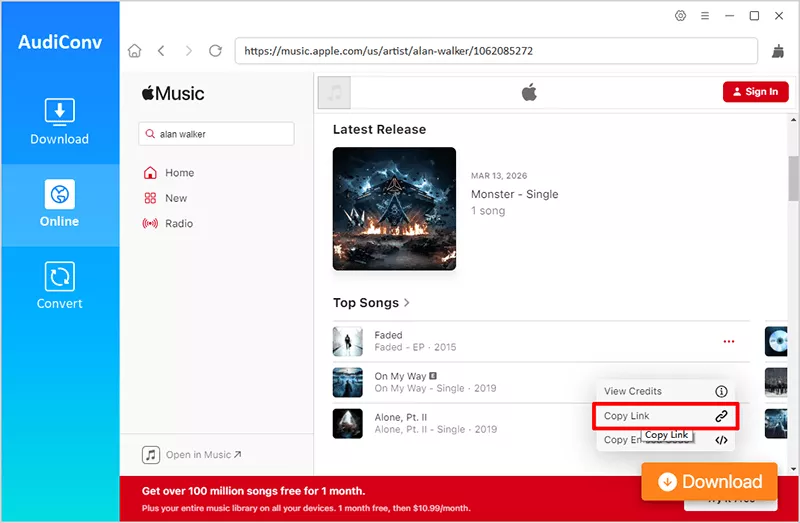
Step 4 Return to AudiConv and click Paste URL in the Download section. The software will analyze the link and load the tracks automatically.

Step 5 Click Download and wait for the conversion to complete. The songs will be saved to your computer as MP3 320kbps files for offline listening.

How to Download Apple Music to MP3 Online for Free?
If you don’t want to install software, you can also use an online downloader to convert songs from Apple Music to MP3. One simple option is AAPLmusicDownloader, a web-based tool that lets you download Apple Music tracks directly from your browser. The tool works by analyzing the Apple Music link you paste into the website. After processing the link, it generates a downloadable MP3 file that you can save to your device. Since it runs online, it works on Windows, Mac, Android, and iPhone without installing any extra programs.
Step 1: Open Apple Music and copy the link of the song, album, or playlist you want to download.
Step 2: Visit the AAPLmusicDownloader website and paste the copied link into the download box.
Step 3: Click the Download button and wait while the website processes the music link.

Step 4: Tap on the Generate Download Link button and select the quality you want.

Step 5: Click on the Download Again button to save the file to your device for offline listening.

Conclusion
We hope you now know how to download songs from Apple Music is easier than many people think. If you simply want to listen offline, the built-in download feature in the Apple Music app works well on mobile and desktop devices. It lets you save songs, albums, and playlists so you can play them without an internet connection. However, those downloads stay inside the Apple Music app and can’t be used as normal audio files. If you want more flexibility, such as saving music as MP3 files or downloading entire playlists at once, tools like AudiConv Music Downloader can be a more practical option. Online downloaders are another quick solution when you only need to convert a song occasionally. In the end, the best method depends on how you plan to use your music. For simple offline listening, the official download feature is enough. For permanent files and wider compatibility, a dedicated converter provides more control.
