
4 Best Methods to Download Audiomack to MP3 on PC/Phone

Audiomack has become a go-to platform for streaming the latest hits, underground tracks, and exclusive releases from artists worldwide. While listening online is convenient, there are times when you want to enjoy your favorite songs offline, whether you’re commuting, traveling, or just want a personal music library. Fortunately, there are several ways to download Audiomack songs to mp3 in high-quality MP3 format on PC, Mac, or your phone. From desktop software to online tools and the official app, this article covers all the options to help you save and enjoy your music anytime, anywhere.
Using Best Audiomack Downloader for PC/Mac
If you want a reliable way to download Audiomack songs to your computer, AudiConv Music Converter is one of the best options. It’s an all-in-one music downloader that works across multiple platforms like Windows and Mac, letting you save music from Audiomack, Spotify, Apple Music, Amazon Music, YouTube Music, Deezer, Pandora, SoundCloud, and more in lossless quality. With AudiConv, you can download songs, albums, playlists, or even music videos and keep them forever, even if your subscription ends.
The AudiConv Music Converter is built for speed and flexibility, supporting batch downloads at up to 10x faster conversion. You can choose from multiple output formats, including MP3, AAC, FLAC, WAV, AIFF, and ALAC, customize bitrates and sample rates, and retain ID3 tags, album artwork, lyrics, and all metadata for easy library management.

AudiConv – All-in-1 Music Converter
- Download Audiomack songs, playlists, and albums locally
- Support batch conversion of multiple tracks at once
- Save lyrics and metadata for easy organization
- Extract YouTube Music videos and convert them to audio
- Offline playback on any device, smartphones, MP3 players, Xbox, PS5, and more

▼ How to Download Audiomack to MP3 320kbps for Free on PC/Mac?
Using AudiConv Music Converter, you can quickly download your favorite Audiomack tracks in high-quality MP3 format for offline listening. Follow these simple steps:
Step 1 Go to Audiomack and find the song you want to download. Copy the link from your browser’s address bar.

Step 2 Launch AudiConv Music Converter on your PC or Mac. Choose MP3 as the output format and select the desired quality, such as 320kbps, for crisp, high-fidelity audio.

Step 3 Click the “Paste URL” button in AudiConv. The software will automatically detect the song and begin downloading.

Step 4 Once the download is complete, go to the Downloaded tab in AudiConv to find your MP3 file. Now you can play it offline on any device or media player.

Using Audiomack MP3 Downloader Online
If you don’t want to install software, several online tools let you download Audiomack songs directly in MP3 format. These web-based options are simple, fast, and work on both PC and Mac.
1. OffMP3
OffMP3 is a free online downloader that allows you to convert Audiomack songs into MP3 without any registration. It supports high-quality audio downloads and works across all major browsers.
▼ How to Download Audiomack to MP3 Online using OffMP3?
Step 1: Go to OffMP3.
Step 2: Copy the URL of the Audiomack song you want to download.
Step 3: Paste the URL into the input box on OffMP3.

Step 4: Click Download, and the website will process the song.
Step 5: After processing, click the download link to save the MP3 file to your device.

2. Audiomack Downloader
Audiomack Downloader is another reliable online tool designed specifically for Audiomack. It allows fast MP3 downloads in various qualities, preserving audio clarity.
▼ How to Use Audiomack Downloader Online?
Step 1: Open Audiomack Downloader in your browser.
Step 2: Copy the song URL from Audiomack and paste it into the downloader’s input field.
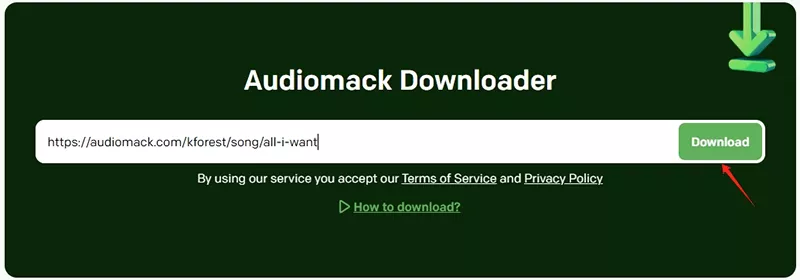
Step 3: Click Download to start converting the song to MP3.
Step 4: Once ready, click the provided link to save the file to your computer.

Both of these online tools are convenient if you need a quick MP3 download without installing any software, making them perfect for casual users who just want offline access to their favorite songs.
Using Audiomack Official APP
For mobile users, the easiest way to download Audiomack songs is directly through the official Audiomack app. This method allows you to save songs for offline playback on your phone without any third-party software. Keep in mind that the downloaded files are stored in the app itself and cannot be accessed directly from your phone’s file system.
▼ How to Download Audiomack Songs to Your Phone?
Step 1: Install the Audiomack app from your device’s store, Google Play Store for Android or Apple App Store for iPhone. Launch the app once installation is complete.
Step 2: Browse or search for the song you want to download. When you find it, tap the Download icon located below the song artwork. Make sure your phone is connected to Wi-Fi to avoid using mobile data during the download.
Step 3: Once downloaded, access your saved songs in the Downloads section of the Audiomack app. You can now enjoy these tracks offline anytime, even without an internet connection.

This method is simple, fast, and perfect for users who want offline listening directly from their phones.
Conclusion
Downloading Audiomack songs is simple on PC, Mac, or mobile. On desktop, AudiConv Music Converter is the most reliable option, allowing you to save Audiomack songs, playlists, and albums in high-quality MP3, WAV, FLAC, or AAC while keeping ID3 tags and lyrics intact. Online tools like OffMP3 and Audiomack Downloader offer quick, browser-based downloads, while the official Audiomack app lets mobile users listen offline. For the best balance of quality, speed, and control on PC and Mac, AudiConv Music Converter is the recommended choice.
